What OpsBoard™ does
Every screen, who it is for and how it is used: from the everyday call to the after-action report.
Every call, from dispatch to back in service
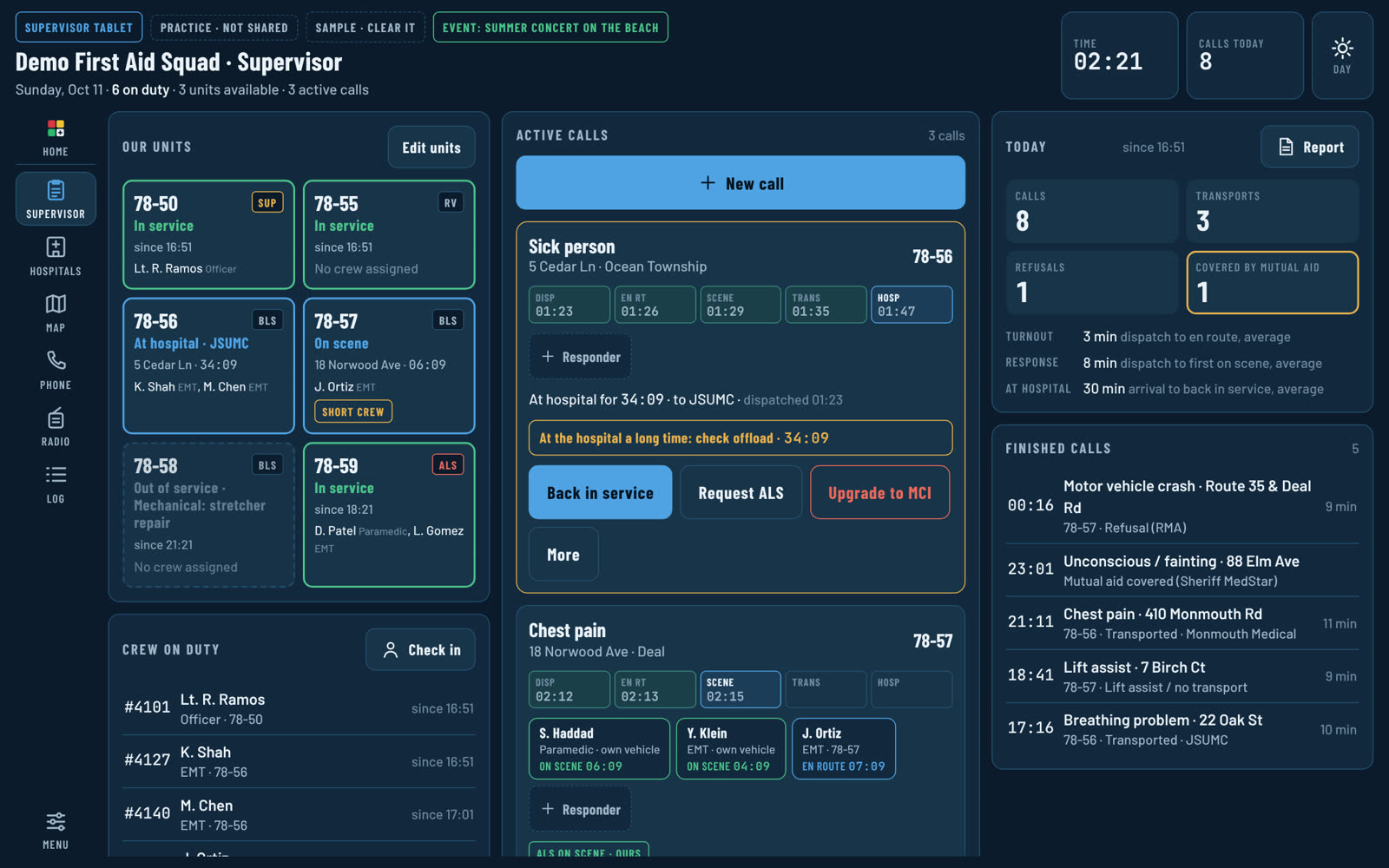
The supervisor board is where a day runs: which units are in service and who's riding them, every active call, and today's numbers.
- Each call stepped with a tap: dispatched, en route, on scene, at the hospital, back in service
- Warns when no unit is en route five minutes after dispatch, or a unit sits at the hospital
- Any call can become an MCI with one tap
Calls from your dispatch
Give your dispatch centre a private email address, or paste a page into the board. OpsBoard reads where the call is, what it is, the call number and the units, and a supervisor taps to log it. Names and phone numbers are thrown away.
Log a call in seconds
The supervisor types the address and town, taps the type and picks the unit that is going, or leaves it empty while members respond. Every tablet has the call at once.
Crew on duty
Check members in by their member number: the name fills in from your roster, and you pick the unit they ride. The board always shows who is on which unit.
Calls with no transport
A refusal, a lift assist, no patient found or a cancelled call is finished with one tap on what happened. If another agency covered the call, the board records who.
From a call to an MCI
Upgrade to MCI on the call card, check the type and the place, and establish command. The call's unit and the people on it come along, already on scene.
Today's report
At the end of the day, Today's report sums up the day's calls, ready to save as a PDF.
Run a mass-casualty incident on one screen
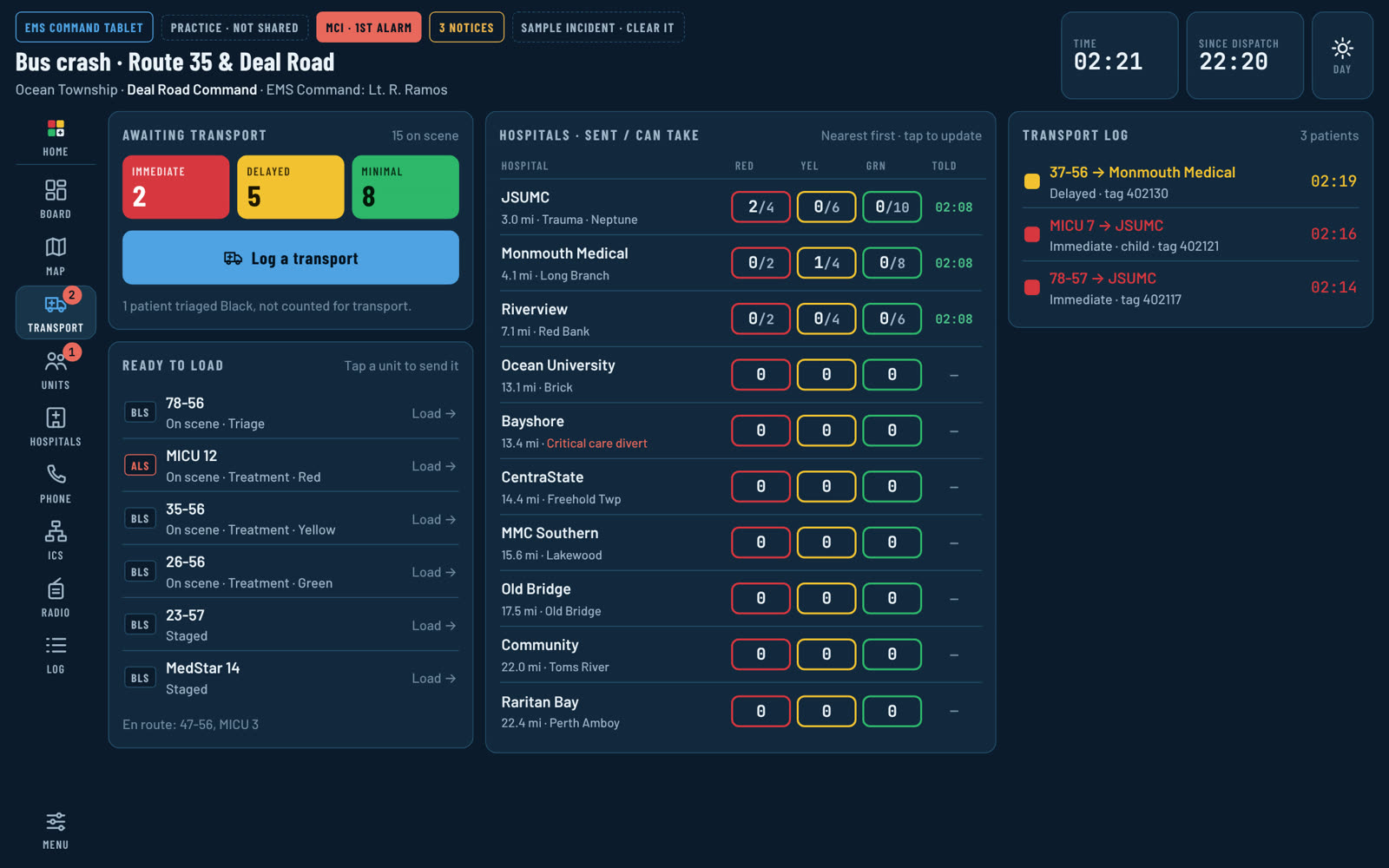
Command, triage and transport each get the screen their job needs, all on the same incident.
- START or SALT triage counts, re-triage and tagging rules
- Transport in five taps, to the nearest hospital that can take that color
- Scan the triage tag at the ambulance door, so every patient is tracked to their hospital
- Live emergency department status from New Jersey's divert board
- Resources on scene and requested, and the ICS chart
Triage counts
The triage officer taps + once for each patient in their color, and − to take one back. START uses Red, Yellow, Green and Black; SALT adds Gray for expectant patients. Re-triage moves a patient from one color to another, and every tablet sees the new counts.
Scan triage tags
The transport officer scans the tag with a phone or tablet camera, taps male or female, the age group, the unit and the hospital. Every tablet sees which patient went where, a tag can't be sent twice by mistake, and the final report lists them all. No names.
Find any tag
Type a tag number into Find to see the unit, the hospital and the time the transport left. Each hospital lists the tags sent to it, and a tag entered on a second transport brings up a warning that it already left.
Hospitals and divert
Each hospital shows how many patients it has been sent and how many more it can take. Where the state publishes it, live emergency department status shows too, with divert in red, and Open now hides any hospital on divert or closed.
Benchmarks
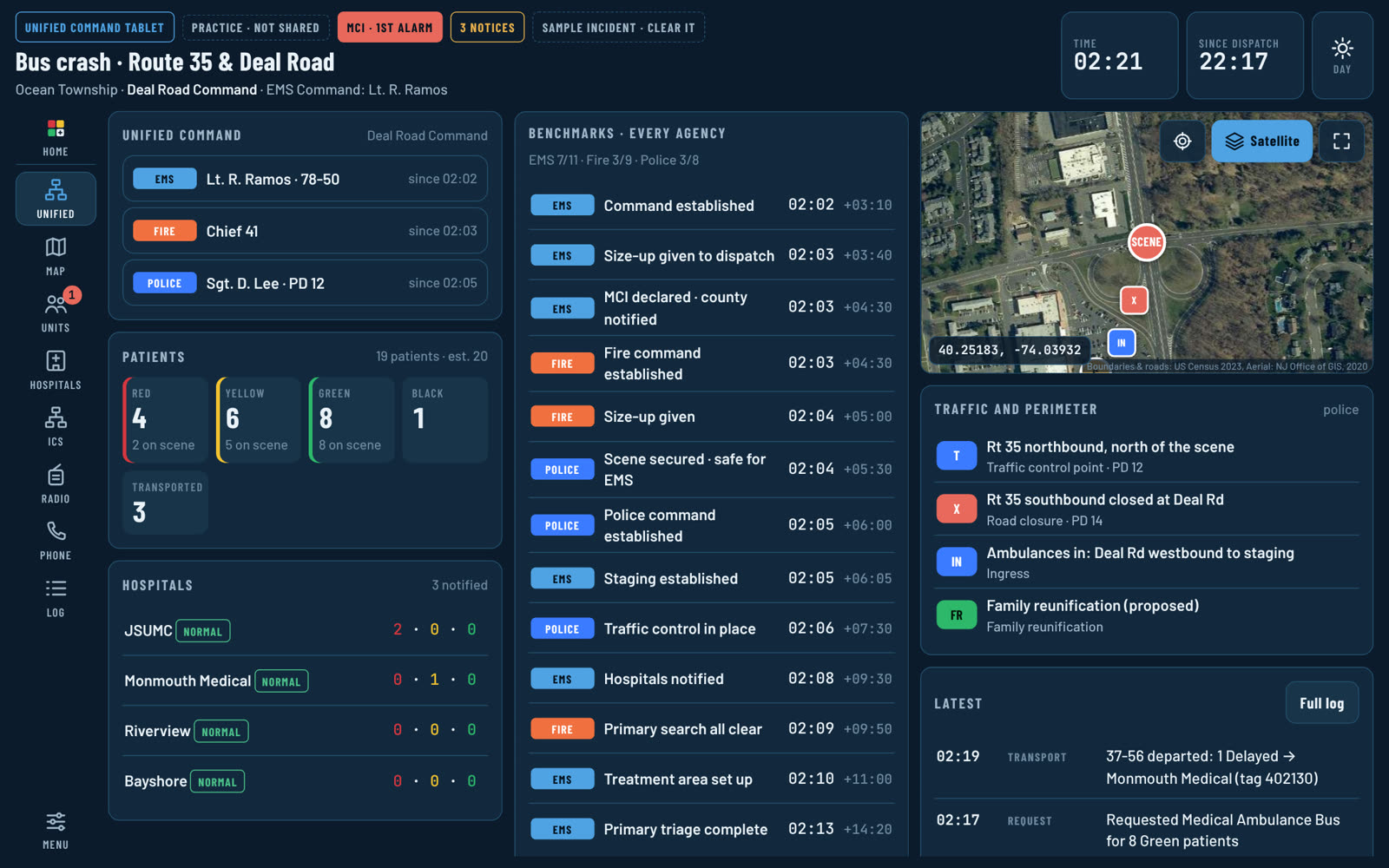
Command stamps each milestone with a tap, from command established and staging set up to all patients transported and the scene clear. The times go straight into the final report.
Units, resources and the ICS chart
Units on scene and requested, who fills each command position, the radio channels in use, and a log of everything that happened, for EMS Command and everyone else working the incident.
EMS, fire, police and OEM, side by side
The view for incident commanders and county OEM: who holds command, each agency's progress, patients, hospitals, and the traffic and reunification points police have set.
- Fire and police departments join as guests with a link that runs out
- Requests for any agency go out from the board
Fire at the scene
Apparatus by assignment, accountability checks for every crew, and fire benchmarks from water supply and primary search to fire under control and overhaul, with hazards and the landing zone on the map.
Police at the scene
Traffic control points, closures, the perimeter, routes in and out and family reunification go on the map with a long press. Police benchmarks run from scene secured to roads reopened.
Guests from other agencies
An admin picks the agency and how long the link works, then sends it. Guests see the MCI, events, operations and alerts, never your daily calls or roster, and the link stops working when you say.
Parades, concerts, races and the fireworks
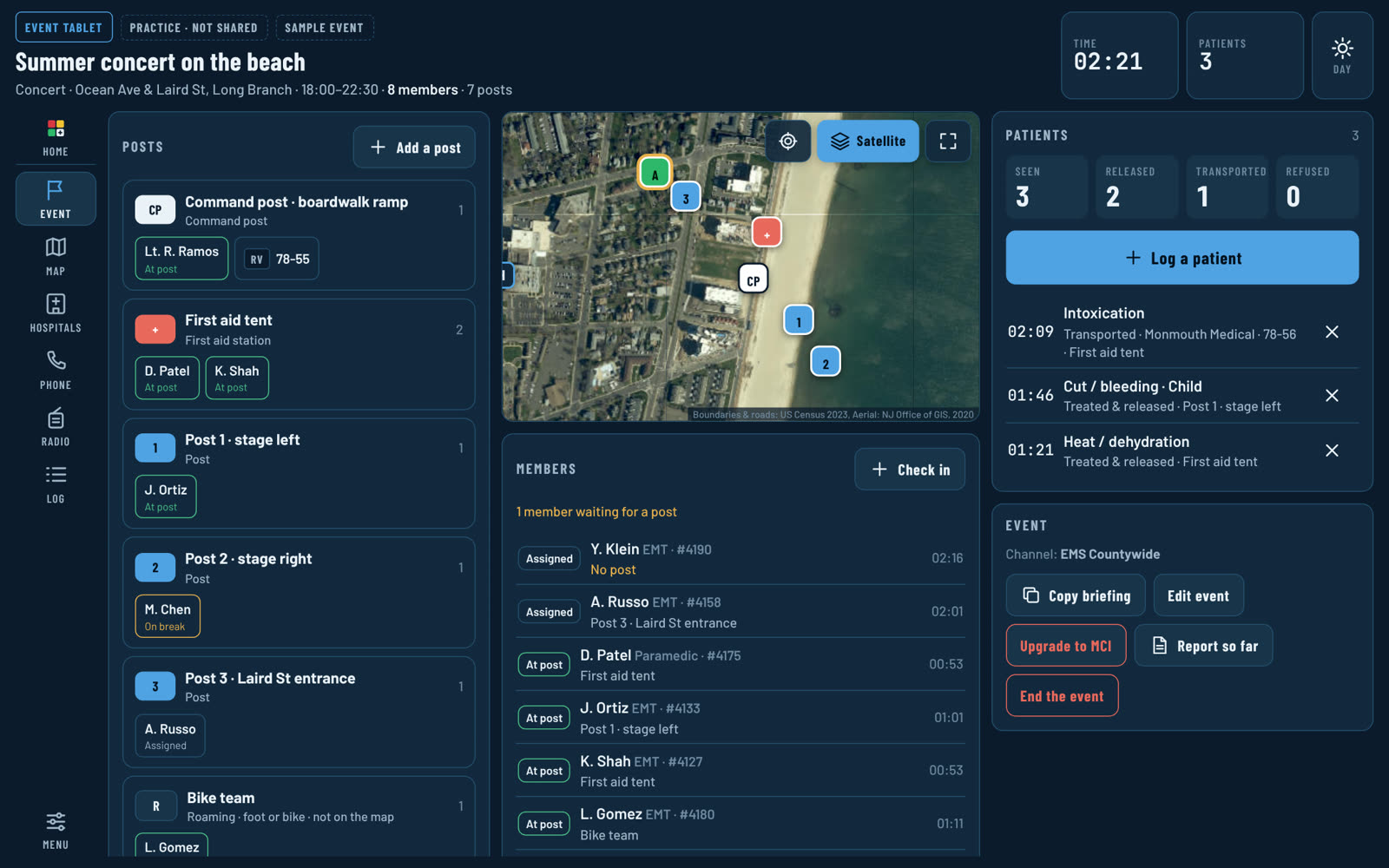
Posts go right on the map, with the members working each one, who's on break, and every patient seen, with no names. If it turns into an MCI, everyone is already on the board.
- Drop a post with a long press on the map, and move it by dragging
- A post with nobody at it stands out
- A simple patient log for the whole event, and an event report at the end
- Turn the event into an operation if it grows, with the place, the commander and the units filled in
Search and rescue, multi-alarm fires, hazmat and storms
For a response bigger than a call: search areas drawn on the map, teams with check-in clocks, alarms and a PAR clock with a Mayday that rings on every device, a hazmat call's material, zones, entry clocks and air readings, shelters and evacuation zones for a hurricane, and a report when it ends. Mutual-aid agencies you invite see it too.
Search and rescue
For a missing person: search segments drawn on the map, teams with check-in clocks, clues, and the time since the person was last seen. A team carrying a phone can show where it is.
Multi-alarm fire
Alarms as they are struck, divisions and crews with their assignments, accountability checks on a clock, a Mayday that rings on every device, rehab and water supply.
Hazardous materials
The material and its guide number, hot, warm and cold zones with the isolation and downwind areas on the map, entry teams on a clock with their PPE level, air monitoring readings and decon counts.
Hurricane or EOC
For a storm or other disaster run from an emergency operations center: shelters with how full each one is, evacuation zones, road closures, damage reports, resource requests and situation reports.
Any other operation
Water rescue, a derailment, a brush fire, a plane crash: zones on the map, resources, a checklist and a log.
ICS forms, filled in
The Incident Briefing (201), Incident Objectives (202), an Assignment List page for every team (204), the Radio Plan (205) and the Activity Log (214), made from what is already on the board. Anything it doesn't know is left blank to write in.
One map, on every tablet
Everything placed on the map shows on every device working the incident, the event or the operation, as soon as it is placed.
Draw right on the map
Drag a finger round a hot zone, a search area or a perimeter and it's there on every tablet, named and colored. Drop staging, the landing zone or a traffic point with a long press, and move anything by dragging it.
Fire ground tools
Place apparatus, route hose lines, paint fire and smoke, label sides A to D. Turn each engine and ladder to face the way it is parked, see the feet of hose on every line, mark collapse and water, and show a rough ladder reach. It all shares to every tablet and plays back in Replay and the report.
Undo, not "are you sure"
Every change on the map is saved when you lift your finger. A mistake comes back with Undo on the note at the bottom of the screen, which stays for 10 seconds.
What's here
Tap any spot to see its coordinates, the nearest water and open hospital, a pre-plan for the building and its flood zone, then pin the scene there for every tablet.
Find
Type a unit, a hospital, a tag number, a hydrant number, a town or road, a phone number, coordinates or a setting. Each result has one button: open it, show it on the map or call it. Find works with no signal.
Building pre-plans
Write down how to get into a building, where the key box and fire department connection are, and what could hurt a crew, or upload them from a spreadsheet. They come up by address on a call, with the nearest hydrants, and work with no signal.
Maps for when there's no signal
Save a few miles of street or satellite map around your district, or around the scene before you head in, and the map still draws with no signal.
The weather and the water, where you are working
A weather chip sits at the top of the board, and the map can show the weather, flood zones, hydrants and helicopters as layers you switch on.
Weather, lightning and tide alerts
National Weather Service warnings with how far away a storm is and how soon it could arrive, lightning and wind, an alert an hour before a high tide when coastal flooding is expected, and radar, clouds and water currents on the map, creek and river levels with their flood stages, FEMA flood zones you can tap on the map, and helicopters in the air near the scene. You choose how close before it speaks up.
Flood zones
Switch on FEMA's flood maps and tap a spot to read its zone, the county's risk rating and recent federal disaster declarations. The scene's zone goes into the final and after-action reports.
Hydrants and water sources
Upload your hydrant list, or have firefighters mark them with a phone's GPS and fix any that are off. Flow and pressure ratings, the nearest water to the scene, a map layer for every tablet, and a reminder when a hydrant is due for its flow test.
One button reaches every device
One-button emergency alerts
Evacuate, shelter in place, Mayday, all units return, a missing person or a suspect with a photo. It lands on every tablet, phone and big screen with OpsBoard open, with a siren, until each one taps Got it.
Who has seen it
Whoever sends an alert sees how many devices have seen it, and ends it with All clear. Mutual-aid guests get it too. With no signal, an alert is never saved to send later: use the radio.
Alerts when the app is closed
Each phone or tablet can choose to get emergency alerts as a notification even with OpsBoard closed, and a test button shows it works. On an iPhone or iPad, add OpsBoard to the Home Screen first.
Dispatch and weather notices
A device can also choose a notification when a dispatch message comes in, and weather warnings for your area come the same way unless it says no. Tapping a weather notice opens the weather.
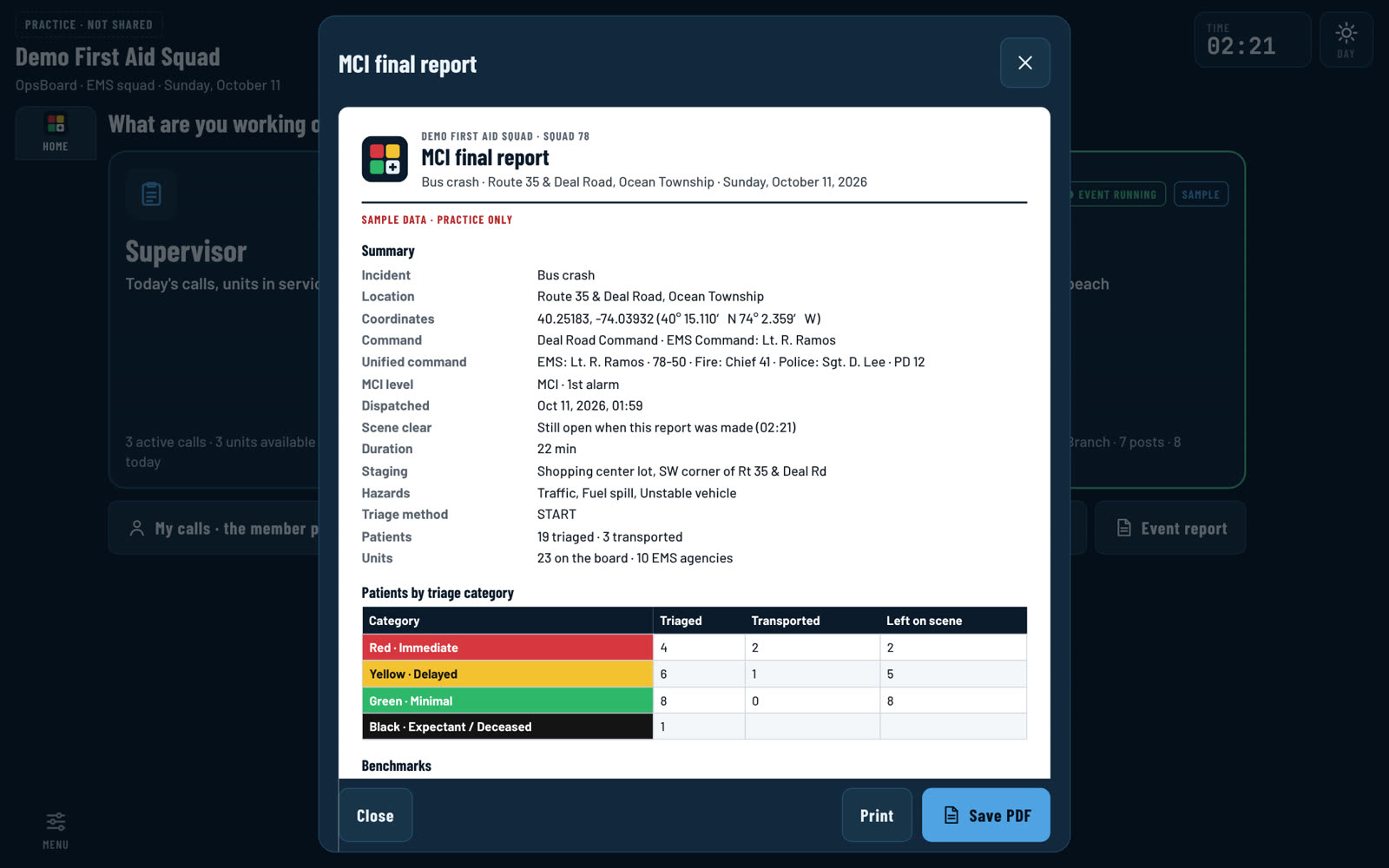
The final report writes itself
At the end of an MCI, an event or the day: every time, benchmark, transport, hospital, unit and person, with the full timeline, as a PDF with your logo. Then the after-action report: a draft built from the record, with room for what went well, what to improve and who does what by when.
- A report for an MCI, an event, an operation or the day
- The after-action report points out the moments worth looking at again
- The words your people add are kept with the incident, on every tablet
- No patient names in any report
See your response times, unit use and busiest hours
The agency console adds up what the board already recorded: how fast units turn out and reach a scene, how much each unit was used, your busiest days and hours, your MCIs, events and operations, and whether after-action reports got written and their actions done. Compare any stretch of days with the days just before, download each part as a spreadsheet, or print a summary. Totals only: no names and no patient information.
Track action items, a training queue and lessons learned
Give each action from an after-action report an owner, a due day and a skill area, and tick it done. Mark the ones to drill with the department and note how you drilled them. A Follow-up list shows what is open and overdue, a training queue and every lesson, with search. Built from the reports you already write, it needs no signal on a tablet, and your admins see the whole agency in the console.
Replay it minute by minute
Replay a call, a mass-casualty incident or an operation minute by minute. Drag back along the timeline, play it at your own speed and jump to the moments that mattered: the counts, units, transports and hospitals as they were at that time. It works from what the board already recorded, with no signal, and it changes nothing.
Run a drill from a scenario library, then review it
Pick a ready-made scenario (a bus crash, a highway crash with entrapment, an apartment fire with a mayday, a hazmat odor at a school, tornado damage, a crowd surge at a big event) or start a blank drill. Your crews train on the real board, with a briefing and timed messages from a facilitator. When it ends you get a scorecard against the targets, a replay and an after-action report. A drill is marked on every screen and printout, and it never counts in your analytics or cost reports.
Get paid back after a declared disaster
After a federally declared disaster, FEMA's Public Assistance program pays back much of what an agency spends on its emergency response, but only for what you can document. OpsBoard already records who worked, when and on which vehicle, so the paperwork is mostly done before you start.
Hours for every person
Check-ins and check-outs on the daily board, MCIs, events and operation teams become hours per person per day, split into regular time and overtime, with what FEMA counts as eligible for each kind of employee.
Volunteer hours count too
Volunteer time is valued the way FEMA's rules say, and listed for the donated-resources credit toward your agency's share of the costs.
Vehicles at FEMA's rates
Give each ambulance, engine or truck its FEMA equipment code once, and the hours it was actually in use are priced at FEMA's published hourly rates.
Supplies and mutual aid
Log supplies used as you go. Units and people from other agencies are listed separately, as FEMA asks for mutual aid.
FEMA's own forms
Spreadsheets laid out like FEMA's labor, equipment and materials summary records, a summary with eligible totals, and a checklist of what you still need to attach.
The whole disaster at once
Admins pick the dates in the agency console and get one report across every board in that time. Pay rates and these files are for admins only.
Show the people who need to know
Share a live view
Send the hospital, the county or a partner agency a link that shows the incident live, with no login, for the hours you choose. It shows counts and statuses, never names or phone numbers, and you can stop it at any time.
Big screen
A view-only board for the TV at headquarters, the EOC or the command post. It follows the incident by itself and can't change anything.
Exports for your records
Download your calls and incidents for any date range as spreadsheet files, for your own reports and records. Calls come as a run sheet, and also with NEMSIS-style column names where the board has a match. Notes, log text and names are never in an export.
Your agency, on any device
Set up in minutes
Your agency console holds your logo, units, roster, hospitals and radio feeds. Devices join by scanning a QR code.
The agency console
On a computer, admins manage logins and devices, invite links, member check-in numbers, mutual aid partners, cameras, water sources, alert options, exports, the plan, the activity log and Help & support, where you ask us a question and follow the answer, and where you approve, invite or end a support session. On a computer, support can also ask to see one person’s screen, with their yes each time. A “What’s new” button, here and on the board’s home screen, shows the messages we send about new features and changes.
Any device
iPads, iPhones, Android, and any laptop or desktop browser. Install it as an app on a computer, or add it to an iPad's Home Screen.
A screen for each job
Each device picks its job: Supervisor, EMS Command, Triage, Transport, Fire, Police, Unified command, Event, Operation or Big screen, and shows only the tabs that job needs. Day colors for sunlight, night colors for the dark.
Live radio and cameras
The county's public feeds, and your own scanner stream played right in the app. Cameras your agency adds can sit on the map: a still picture refreshes every few seconds.
Any county, any state
Started in Monmouth County, NJ, with its towns, staging areas, hospitals, mutual aid and the NJ EMS Task Force. Every agency gets its own.
Help from us, only when you ask for it
Our team never opens your agency on its own. You ask, you approve, you can end it, and every change we make is in your activity log.
Ask us, and follow the answer
Send a question, a problem or an idea from the agency console, and mark it urgent only if your agency can't work. Every request is a thread you can reply to, close or reopen, and our replies reach you by email as well. Our private notes never reach you.
Support comes in only when you say so
Support can ask to look at your agency, or you can invite us in. You choose View (they look and change nothing) or Fix (they can change your settings, never your billing, logins, passwords or two-step), for 1 hour, 2 hours or 1 day. While we are in, everyone in your agency sees a banner. Every change is in your activity log, marked as support, and you get a summary by email when it ends. You can end it at once.
See your screen, with your say-so
Support can ask to see your screen to help you. You pick Join each time, nothing is recorded, and either side can stop. Only if you press Allow, support can click and type in the OpsBoard tab, never on sign-in or security screens, and pressing Esc takes control back at once. It works in a computer browser: phones and tablets can't share their screen, so we'll find another way to help.
A "What's new" button
When we have something to tell you, a button appears in the app and the console: new features, a notice, or planned maintenance. Tap Got it, or Don't show again. When an update needs a refresh, it tells you and does it in one tap. When there is nothing to say, the button is not there.
It keeps working when the signal drops
Works offline
No signal on scene? The board keeps working on every device and catches everyone up when the connection is back.
You can see what's waiting
A chip at the top says when a device has no signal and how many changes it has saved. Tap it to see what still has to send, and what was put together when the signal came back.
Backed up every night
Your agency's setup, people and settings are kept in the cloud, not on a tablet, and backed up nightly, so a lost iPad or a mistake never loses them.
No patient names, and everyone signs in as themselves
Patients are tracked by triage color, tag number, sex and age group. There is nowhere to type a name. How OpsBoard keeps your data safe →
Keep the responder app you already use
Your members keep IamResponding, Active911 or whatever pages them today. OpsBoard doesn't replace it: it's the board your supervisor and command run the day and the scene from.